K-1 Custom Benchmark Ranges
Overview
The K-1 Custom Benchmark Ranges feature in TKG Analytics allows districts to define grade-specific performance ranges for Kindergarten and 1st Grade assessments using raw percent scores out of 100.
This feature is designed to support districts that administer developmentally appropriate K-1 benchmarks that do not align cleanly with upper-grade performance band structures.
Once defined, K-1 custom ranges are applied consistently across the platform to ensure accurate reporting and projections for early elementary students.
K-1 ranges are the K-1 form of your district's custom cut scores; as with any district assessment, they must be set before the matching scores are imported. For the three assessment types and how each is scored, see Assessment Types and Per-Year Limits.
Custom K-1 ranges automatically apply to:
- Impact Dashboards
- Accountability Projections
- Student-level performance classifications
- CSV and PDF exports
Why It Matters
- Provides age-appropriate performance classifications for Kindergarten and 1st Grade students.
- Supports districts using early literacy screeners and foundational math assessments.
- Prevents K-1 scores from being forced into upper-grade performance band logic.
- Ensures consistent reporting across schools while allowing district-level flexibility.
How It Works
-
District-Level Control
Only users with district administrator permissions can manage K-1 benchmark ranges. -
Grade-Specific Logic
Custom ranges apply only to Kindergarten and 1st Grade and do not affect grades 2–12. -
Subject-Aware Ranges
Districts can define separate benchmark ranges for English Language Arts and Mathematics. -
Standard Defaults
New benchmark ranges start from the standard percent-correct scale. To use a K-1 specific scale, enter the values below by hand in the Benchmark Ranges settings. -
Audit and Rollback
All changes are logged with a timestamp and user name. Districts can revert to the standard scale at any time.
Recommended K-1 Benchmark Ranges
These values are not applied automatically. Every grade starts from the standard percent-correct scale. Districts that want a K-1 specific scale can enter the values below by hand in the Benchmark Ranges settings.
Kindergarten – English Language Arts
| 1a | 1b | 2a | 2b | 3a | 3b | 4 | 5 |
|---|---|---|---|---|---|---|---|
| 0–14 | 15–26 | 27–34 | 35–40 | 41–48 | 49–56 | 57–72 | 73–100 |
Kindergarten – Mathematics
| 1a | 1b | 2a | 2b | 3a | 3b | 4 | 5 |
|---|---|---|---|---|---|---|---|
| 0–13 | 14–27 | 28–39 | 40–50 | 51–58 | 59–67 | 68–84 | 85–100 |
1st Grade – English Language Arts
| 1a | 1b | 2a | 2b | 3a | 3b | 4 | 5 |
|---|---|---|---|---|---|---|---|
| 0–16 | 17–28 | 29–36 | 37–42 | 43–51 | 52–59 | 60–77 | 78–100 |
1st Grade – Mathematics
| 1a | 1b | 2a | 2b | 3a | 3b | 4 | 5 |
|---|---|---|---|---|---|---|---|
| 0–14 | 15–29 | 30–41 | 42–53 | 54–62 | 63–72 | 73–89 | 90–100 |
Customization Guidance
These benchmark ranges are recommended values, not platform defaults. The platform defaults every grade to the standard percent-correct scale.
If a district prefers different performance expectations:
- Ranges can be edited directly in the Benchmark Ranges settings
- Changes take effect immediately for all dashboards and exports
- No reconfiguration is required
Districts are encouraged to review these ranges annually and adjust them as instructional expectations evolve.
PDF and CSV Export Example
When a district downloads the Benchmark Ranges CSV, it contains the grade, subject, and the cut_scores list.
The cut_scores column lists the lower bound of each band in ascending order.
| grade | subject | cut_scores |
|---|---|---|
| Kindergarten | English | 0,15,27,35,41,49,57,73 |
| Kindergarten | Math | 0,14,28,40,51,59,68,85 |
| 1st Grade | English | 0,17,29,37,43,52,60,78 |
| 1st Grade | Math | 0,15,30,42,54,63,73,90 |
Editing Benchmark Ranges
- Log in to TKG Analytics.
-
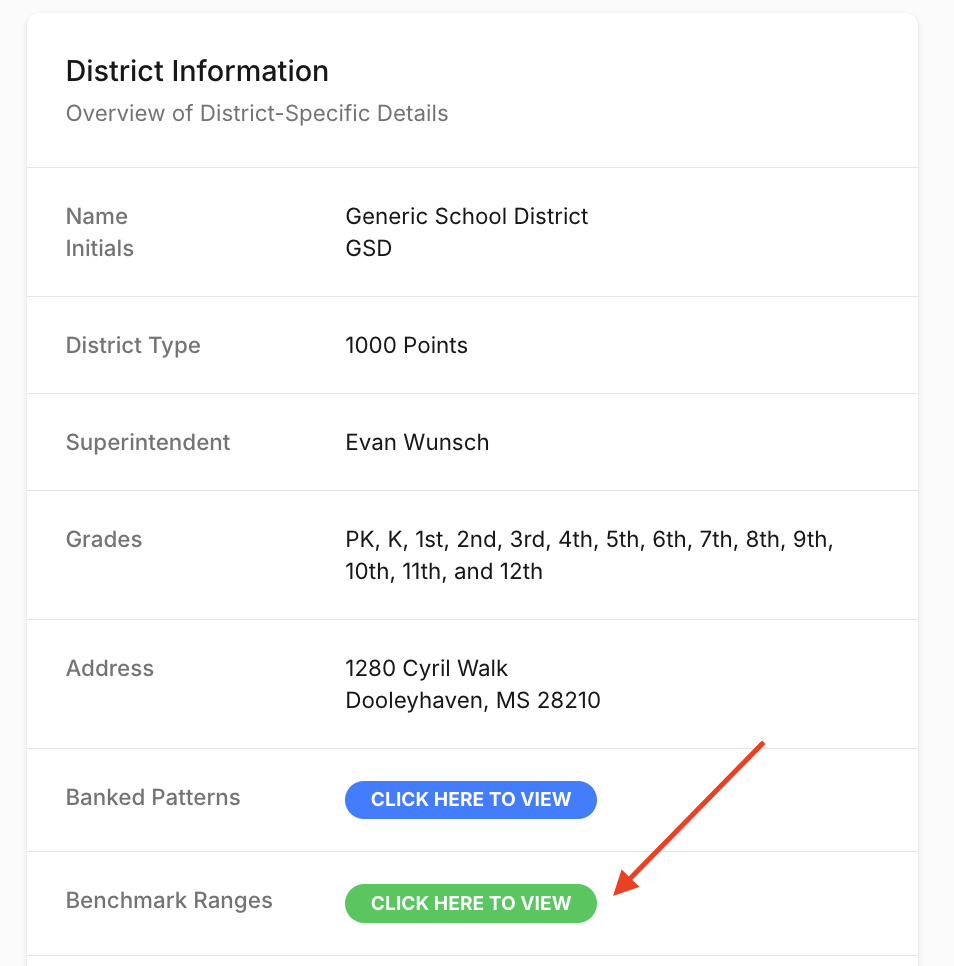
In District Information, click View Benchmark Ranges (District Admins only).
-
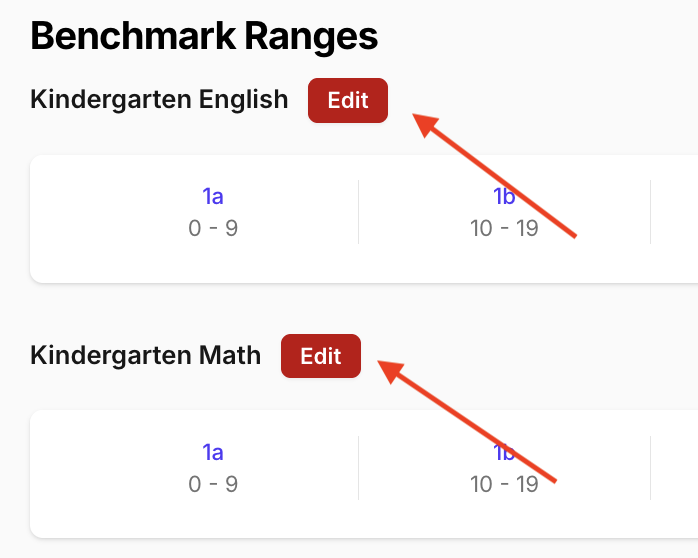
Find the grade and subject you want to update, then click Edit.
-
Adjust the lower bound for each performance band as needed.
- Click Save to apply the changes across all dashboards, projections, and exports.
Changes to benchmark ranges take effect immediately for all users in the district.
Timing Requirements for K-1 Ranges
K-1 benchmark ranges must be finalized before Impact data is generated for the assessment window.
- Impact calculations reference benchmark ranges at the time they are first run.
- Updating ranges after Impact data is generated does not retroactively update results.
- Reprocessing data is not part of the standard workflow and may require support intervention.
Recommendation:
Confirm all K-1 benchmark ranges at the start of the assessment window and prior to uploading student score files.
Support
To enable or update K-1 custom benchmark ranges:
- Open a Helpdesk Ticket
- Schedule an implementation review
- Add your district’s desired cut score percentages in the Benchmark Ranges settings