Uploading Your Mastery Connect Assessment Files
The File Uploader allows you to manually import your assessment files from Mastery Connect into TKG Analytics.
Your scores import once the upload is accepted, and you’ll receive an email confirmation immediately after uploading. A zip is unpacked first, and its scores import as soon as that is done. Once the import finishes, the import status email tells you what happened to every file. Reports built from those scores are updated by the TKG Analytics team, who notify you once they are complete.
Your district’s assessments follow a fixed per-year shape - at most four benchmark, four district, and one state assessment; see Assessment Types and Per-Year Limits.
Accessing the File Uploader
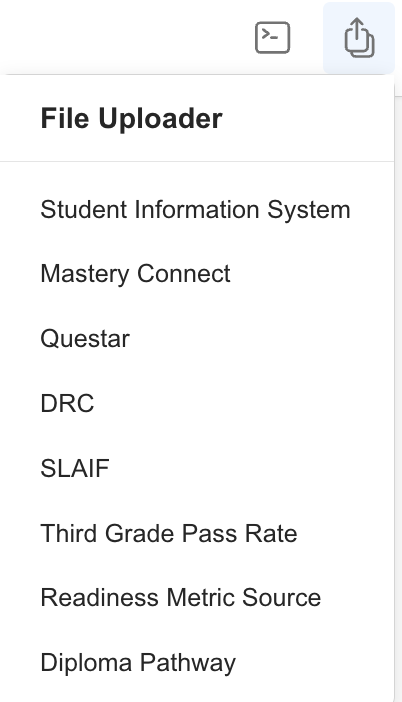
You can access the File Uploader from anywhere in TKG Analytics by finding the File Upload icon on the top navigation bar:
- Click the File Upload icon in the navbar.
- Select the type of files you want to upload from the dropdown menu.
Only District Admins have permission to upload user files. If you do not see this option, contact your district administrator for access.
Upload Requirements
Before uploading, make sure your files meet the following:
| File Type | File Types Allowed | Max File Size Allowed |
|---|---|---|
| Mastery Connect | xlsx, zip | 250 MB |
The file must be the original download from the vendor and remain untouched (no edits or changes).
Required Files
To complete the upload, you will need the following files:
- Benchmark Export File
- The file must end with:
_EXPORT.csv - When Mastery Connect produces it, there is one
_EXPORT.csvfile for every benchmark assessment in your district.
- The file must end with:
Important: Request this file from Mastery Connect before your assessment window closes. It is the file we prefer, and the only one that covers your whole district in a single export.
- Class Report Files
- The files end with
_ClassReport.xlsx, one per teacher per class period. - Mastery Connect does not produce a benchmark export file for every district. When your zip has no
_EXPORT.csv, TKG Analytics reads the class report files instead. They carry the same student level results. - When both are present in the same folder, the export file is used and the class reports are skipped.
- The files end with
Upload the zip exactly as it downloads. It also contains PDF reports and a school level report, which TKG Analytics ignores, along with any hidden files your computer adds to the folder. Do not remove them, and do not open and re-save the workbooks.
- Algebra I Export File (compacted 8th graders)
- In an export file, the filename must include
ALG1(case is ignored, soalg1works too). - In the bulk download, the compacted files are already named with
MALG, which TKG Analytics recognises without any renaming. - Either way, this lets TKG Analytics tell a compacted 8th grader's Algebra I results apart from their on-grade 8th grade math results.
- In an export file, the filename must include
If your district has compacted 8th graders taking Algebra I, their Algebra I results arrive in a separate export from on-grade 8th grade math. Both files are needed. If you are sending export files rather than the full bulk download, the Algebra I file must have ALG1 in its name. Without it, the two sets of scores collide and only one is kept.
- Item Analysis Files
- You must include all district, school, and teacher item analysis files.
- For school item analysis files:
- The filename must include the school’s three-digit SIS code.
- For teacher item analysis files:
- The file name must include the teacher of record.
- The teacher’s name in the file name must exactly match what is listed in your SIS.
Student ID Column
Mastery Connect exports can include both a StuNumber and a StuStateID column (and sometimes only one is present). When both exist, our importer uses StuNumber to match students to your district roster.
If both columns are present, take a quick look to confirm they contain the same value for every row. Mastery Connect occasionally populates these with different IDs — when they diverge, scores can match the wrong students or fail to match at all.
If you spot a mismatch, you have two options:
- Edit the file to make sure
StuNumbercarries the state-issued MSIS ID, then save and upload. - Reach out to your Mastery Connect representative to align the columns at the source, then re-export.
How Each Column Is Used
What TKG Analytics reads from a Mastery Connect export or class report depends on your district's Calculation Type.
| Column | Vendor Defined | District Defined |
|---|---|---|
Student ID (StuNumber, MSIS, Student_ID or Student Number) |
Required. Matches the score to a student on your roster. | Required. Matches the score to a student on your roster. |
Scale score (Proj Scale Score or Scale Score) |
Required. Grades 3 and up: sets the performance level against the state's scale score bands, and is stored. | Not read. |
Percent correct (Perc Corr or Percent Correct) |
Not read. | Required. Scored against your district's cut scores. |
Achievement level (Proj Ach Lvl) |
Kindergarten to grade 2: sets the performance level. | Not read. |
Subject (SUBJECT, CONTENT_AREA or Test_ID) |
Required in an export. A class report takes its subject from its file name instead. | Required in an export. A class report takes its subject from its file name instead. |
In an Excel export (_district_export.xlsx) or a class report, every column your Calculation Type reads must be present, or the file cannot be read. That includes the achievement level column for a Vendor Defined district, at every grade.
Where the achievement level sets the level, each value must be one of 1a, 1b, 2a, 2b, 3a, 3b, 4, 5. Capital letters, spaces around the value, and a trailing .0 do not matter.
Midterm files are different: you confirm their columns when you upload them. See the District Assessment Walkthrough.
What Happens to a Row That Cannot Be Scored
- A row with no student ID is not a student, such as a totals line, and is skipped.
- A row with no score (scale score for Vendor Defined, percent correct for District Defined), no subject, or a subject other than English, math, science or history is not imported.
- Where the achievement level sets the level, a row whose level is blank, or is not one of the accepted levels above, is not imported.
- A student who is not on your roster, or has no enrollment in that subject for the assessment's period, is not imported.
- If the student already has a score for this assessment, a row that is not imported leaves that score as it was.
The rows that are not imported are counted by reason, and the TKG Analytics team can see them.
When an Upload Is Turned Down
Every file is checked before anything is saved, including each score file inside your zip, and every problem is listed in a popup titled Your upload was not saved, one per line. An upload is turned down, with nothing saved, when it holds no export or class report at all, when a file is not a .zip or .xlsx or is over 250 MB, or when a score file cannot be read, has no student ID, score or subject we can find, has no student on your roster, has no scores, or, where the achievement level sets the level, has no level we can read. See What TKG Analytics Requires Before an Upload for each message and what clears it.
The PDF reports, report workbooks, item response files and hidden files in your zip are skipped without a message, so upload the zip exactly as it downloads.
Step-by-Step: Retrieve the Correct Mastery Connect Export File
TKG Analytics will only accept finalized results directly from the MasteryConnect team. Scores will not be imported or processed until MasteryConnect confirms that your data has been fully scaled and marked as complete. Please ensure you wait for official confirmation before attempting to upload results.
-
Log into Mastery Connect
Navigate to Mastery Connect and log in. -
Click the Admin dropdown on the top navigation bar, then click Benchmarks.
-
From the list of benchmark assessments, click every benchmark for the given assessment window.
-
Once you select all the assessments, click on the Bulk Action dropdown and select Export Predictive Reports.
-
A window will appear, then select Export.
-
Once you select Export, you will be redirected to a new page. When the export files have finished loading, press the download button (the button next to the Quantity number).
-
Once you select the download button, one
.zipfile is downloaded to your computer.
Step-by-Step: Mastery Connect File Upload into TKG Analytics
-
Open the File Uploader
Navigate to the file uploader screen using the method above. -
Select Mastery Connect from the dropdown menu.
-
Choose the Assessment
Pick the benchmark from the Assessment list, for example Benchmark 1 for the current school year. The upload area appears once you have chosen one. Double-check it, as it decides where your scores are filed. -
Select or Drag Your Zip File
Drag and drop the.zipfile into the upload area. A popup covers the page while the file uploads; keep the page open until it closes. -
Verify Your Zip File
Ensure the file:- Matches the allowed file type.
- Is smaller than 250 MB.
-
Click
Finish
This step saves your upload to the system. Finish becomes available once you have added at least one file and, if your roster is out of date, ticked the box confirming you understand. -
Receive Confirmation Email
After uploading, you’ll receive an email confirming your submission. -
Your Scores Import
Scores import once the upload is accepted, with nothing more for you to do. A zip is unpacked first. If you add more files for the same assessment later, they import too, and a student already imported keeps one score.
The confirmation email is sent to the user who performed the upload. You’ll receive an email after uploading that includes your name, district, data type, and the exact upload time.
Troubleshooting
- File Rejected: The popup names each file and what is wrong with it. See When an Upload Is Turned Down.
- Wrong Data Displaying: Verify you selected the correct year and benchmark during upload.
- Didn’t Receive a Confirmation Email? Check your spam or junk folder first. If you still don’t see it, please open a Helpdesk Ticket.
- Missing Upload Button: Try refreshing the page or clearing your browser cache.
Need Help?
- Helpdesk Ticket: Helpdesk Ticket
- Website: https://tkganalytics.org