Uploading Your SLAIF Files
The File Uploader allows you to manually import your SLAIF assessment file into TKG Analytics.
This upload imports as soon as you submit it, and you’ll receive an email confirmation immediately after uploading.
SLAIF is your state assessment file; for how it fits alongside your other assessments, see Assessment Types and Per-Year Limits.
Accessing the File Uploader
You can access the File Uploader from anywhere in TKG Analytics by finding the File Upload icon on the top navigation bar:
- Click the File Upload icon in the navbar.
- Select the type of files you want to upload from the dropdown menu.
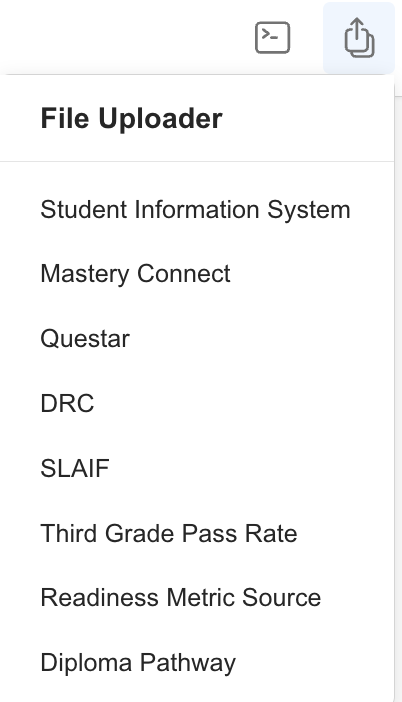
District Admins, and anyone granted the Uploader add-on, can upload SLAIF files. If you do not see this option, contact your district administrator for access.
Upload Requirements
Before uploading, make sure your files meet the following:
| File Type | File Types Allowed | Max File Size Allowed |
|---|---|---|
| SLAIF | xlsx or csv | 25 MB |
If you download the SLAIF from MDE as CSV, upload the CSV as it is. It carries the same columns as the Excel file.
The file must be the original download from the vendor and remain untouched (no edits or changes).
Step-by-Step: SLAIF File Upload
-
Open the File Uploader
Navigate to the file uploader screen using the method above. -
Indicate the Assessment Details
Select the Year. Only completed school years are offered, because MDE does not publish a SLAIF for a year still in progress. Double-check that the selected year matches the assessment data in your file. -
Drag Your File
Drag and drop your.xlsxor.csvfile into the upload area. A popup covers the page while the file uploads; keep the page open until it closes. -
Verify File Name and Size
Ensure your file:- Matches the allowed file type.
- Is smaller than 25 MB.
-
Click
Finish
This saves your upload and starts the import. -
Receive Confirmation Email
After uploading, you’ll receive an email confirming your submission, and a second email when the import finishes, saying whether your SLAIF was imported.
The confirmation email is sent to the user who performed the upload. You’ll receive an email after uploading that includes your name, district, data type, and the exact upload time.
Uploading Corrected or Final Files
When MDE sends a corrected or final SLAIF for a year you have already uploaded, upload it for the same year. The new upload replaces every SLAIF file uploaded for that year before and is imported right away, so an earlier version and a later one are never read together. The earlier files are not deleted: they are kept in an archive for that year, so they can be restored if a replacement was a mistake. A student the new file leaves out keeps the SLAIF record the earlier file gave them; if one should be removed, please open a Helpdesk Ticket.
If MDE sends a year's SLAIF as more than one file, upload them together in a single upload. A second upload for the same year replaces the first, including any file from the first upload you meant to keep. If that happens, please open a Helpdesk Ticket and we can restore the archived file.
Troubleshooting
- File Rejected: Check that the file meets the upload requirements and hasn’t been edited. The uploader accepts
.xlsxand.csv; if you opened the file and saved it in another format, download a fresh copy from MDE. - File Rejected as Not a SLAIF: Each file is checked before anything is saved or moved, and the message names the columns every SLAIF carries that the file lacks, such as
MSIS. Check that you chose the SLAIF file type and dropped the SLAIF itself rather than another MDE file. - Wrong Data Displaying: Verify you selected the correct year during upload.
- Wrong Year Selected: Please open a Helpdesk Ticket. The upload replaced that year's SLAIF files and was imported into the year you picked. Uploading again with the correct year fixes the correct year, but it does not undo the import into the wrong one, so we need to restore that year's archived files and reverse the import for you.
- Didn’t Receive a Confirmation Email? Check your spam or junk folder first. If you still don’t see it, please open a Helpdesk Ticket.
- Missing Upload Button: Try refreshing the page or clearing your browser cache.
Need Help?
- Helpdesk Ticket: Helpdesk Ticket
- Website: https://tkganalytics.org