Uploading Your MDE Impact Files
Each fall, MDE releases your district's accountability results as two files. The File Uploader is how you get both of them into TKG Analytics.
Unlike your vendor score files, this upload imports as soon as you submit it. You do not need to wait for the TKG Analytics team to process it.
The Two Files
MDE sends both files together. You need both, but you can upload them separately if one arrives before the other.
| File | What it contains | ID column |
|---|---|---|
| District Impact | A single row of district level results | District_ID or LEAIdentifier |
| School Impacts | One row per school in your district | School_ID or SchoolIdentifier |
MDE has used two layouts for these files. Older files identify your district with District_ID and each school with School_ID. Newer files use LEAIdentifier and SchoolIdentifier, and each school's ID also carries your district number, for example 1234-005. Either layout works.
These two files feed both your official impacts and your readiness standards for graduation, acceleration, and college and career readiness.
Accessing the File Uploader
You can access the File Uploader from anywhere in TKG Analytics by finding the File Upload icon on the top navigation bar:
- Click the File Upload icon in the navbar.
- Select MDE Impacts from the dropdown menu.
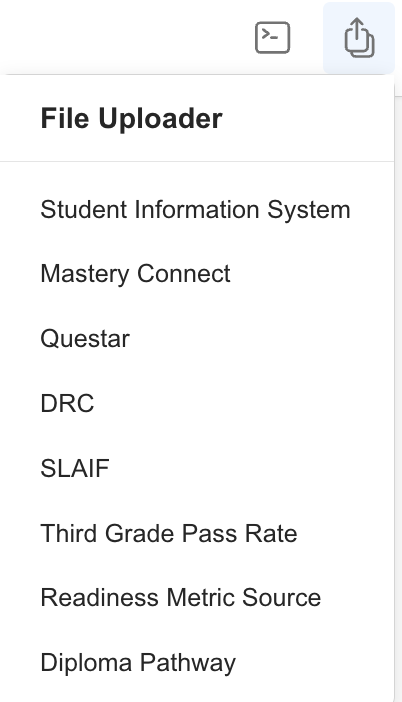
District Admins, and anyone granted the Uploader add-on, can upload these files. If you do not see this option, contact your district administrator for access.
Upload Requirements
| File Type | File Types Allowed | Max File Size Allowed |
|---|---|---|
| MDE Impacts | xlsx or csv | 25 MB |
If you download the files from MDE as CSV, upload the CSVs as they are. They carry the same columns as the Excel files.
The files must be the original downloads from MDE and remain untouched (no edits or changes).
Step-by-Step: MDE Impact File Upload
-
Open the File Uploader
Navigate to the file uploader screen using the method above. -
Select the Year
Choose the school year the results are for. Only completed school years are offered, because MDE does not publish results for a year still in progress. -
Drag Each File Into Its Own Slot
There are two separate drop areas, one for District Impact and one for School Impacts. Put each file in the slot that matches it. A popup covers the page while each file uploads; keep the page open until it closes. -
Click
Finish
This saves your upload and starts the import. -
Receive Confirmation Email
After uploading, you will receive an email confirming your submission, and a second email when the import finishes, saying whether your results were imported.
What You Do Not Need to Worry About
Your file names do not matter. MDE's downloads are not consistently named, and yours may have been renamed on the way to you. TKG Analytics stores each file under a fixed internal name based on the slot you dropped it in, so 2025-26 Results FINAL v3.xlsx works exactly as well as anything else. The confirmation email still records the name you actually sent.
Re-uploading is safe. If MDE reissues a file, sends final results after preliminary ones, or you realize you uploaded the wrong one, just upload the correct file again for the same year. It replaces what was there, even when the earlier file was Excel and the new one is CSV or the other way around, and the results are imported again. You do not need to ask anyone to remove the old one first. The file it replaces is kept in an archive for that year rather than deleted. A school the new file leaves out keeps the results the earlier file gave it; if they should be removed, please open a Helpdesk Ticket.
What Happens If the Files Are Swapped
Because your file names are not used, the slot is the only thing that tells TKG Analytics which file is which. Putting the school file in the District Impact slot would attribute every school's results to your district as a whole.
To prevent that, each file is checked before anything is stored. If a file is in the wrong slot, the upload is refused and a popup titled Your upload was not saved names the file and what was wrong with it. For older files, for example:
school_impacts.xlsxlooks like the School Impacts file: it has aSchool_IDcolumn. Check that each file is in its matching slot.
district_impact.xlsxdoes not look like the School Impacts file: it has noSchool_IDcolumn. Check that each file is in its matching slot.
Newer files carry both ID columns, so the check looks at the rows instead:
school_impacts.csvlooks like the School Impacts file: its rows are schools rather than the district. Check that each file is in its matching slot.
district_impact.csvlooks like the District Impact file: none of its rows is a school. Check that each file is in its matching slot.
The District Impact slot also refuses a file holding more than one row of results, because MDE's district file always holds exactly one.
Nothing is saved when this happens, including any file in the other slot that was fine. Swap the two files and upload again.
After the Import: Readiness Standards Become Read-Only
Once your MDE results are imported for the most recent completed school year, that year's readiness standards become read-only for District Admins. This is expected, not an error.
Years before that one are already read-only for District Admins, so uploading results for the older of the two years offered does not change who can edit its standards.
Those standards come from MDE's own numbers in the file you just uploaded. Once the state's values are in place, they are the authority, so they are no longer editable at the district level. If a standard looks wrong after an import, please open a Helpdesk Ticket rather than trying to edit it.
Your current year's readiness standards are unaffected and stay editable.
Troubleshooting
- File Rejected for a Missing or Unexpected Column: Check that each file is in its matching slot. The School Impacts file lists your schools by
School_IDorSchoolIdentifier; the District Impact file holds only your district's row. - File Rejected as Not an Excel Workbook or CSV File: The uploader accepts
.xlsxand.csv. If you opened the file and saved it in another format, download a fresh copy from MDE. - File Rejected for Missing Readiness Standard Columns: Each school year's readiness standards come from particular columns, and the message names the ones the year you selected needs. It almost always means the file is for a different school year than the one you picked. Select the year the file is for and upload it again. If the year you picked is right, please open a Helpdesk Ticket, since the file may name those columns differently.
- File Rejected as Another District's File: Each MDE file names its district, and the message gives that number beside yours. Download your own district's files from MDE and upload them again.
- File Rejected as Unreadable: If the message says only that the file could not be read, that is usually on our end rather than in your file: try the upload once more, and if it is refused again, please open a Helpdesk Ticket. If it says the file could not be read as an Excel workbook or CSV file, the file itself is damaged or in another format, so download a fresh copy from MDE.
- Wrong Year Selected: Please open a Helpdesk Ticket. The file has already been imported into the year you picked, and that year's results now reflect it. Uploading again with the correct year fixes the correct year, but it does not undo the import into the wrong one, so we need to reverse that for you.
- The Year You Need Is Not in the List: Only completed school years are offered. If you need results for a year outside that list, please open a Helpdesk Ticket.
- Didn't Receive a Confirmation Email? Check your spam or junk folder first. If you still don't see it, please open a Helpdesk Ticket.
Need Help?
- Helpdesk Ticket: Helpdesk Ticket
- Website: https://tkganalytics.org