Setting Score Filters
Only district and school-level users have access to the Score Filters page.
District and school users can assign filters to students to reflect support contexts like intervention services, consultant check-ins, or alternative school placement. These filters help surface context when reviewing student performance.
Step-by-Step: Tagging Students
-
Go to the Score Filters page
Navigate to https://tkganalytics.org/score_filters -
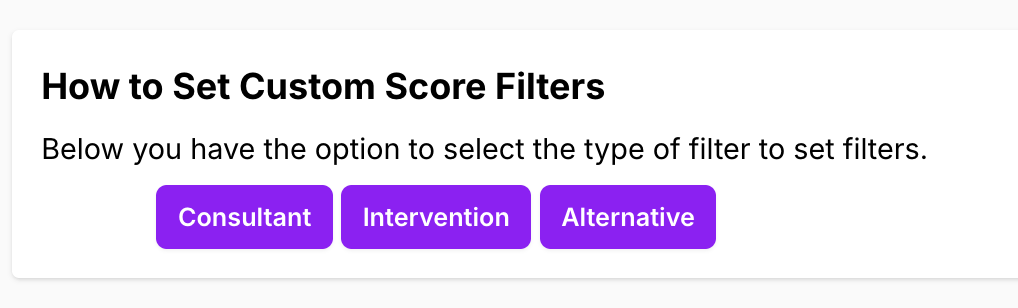
Choose a Filter Type
Select one of the available filters at the top of the page:- Consultant
- Intervention
- Alternative
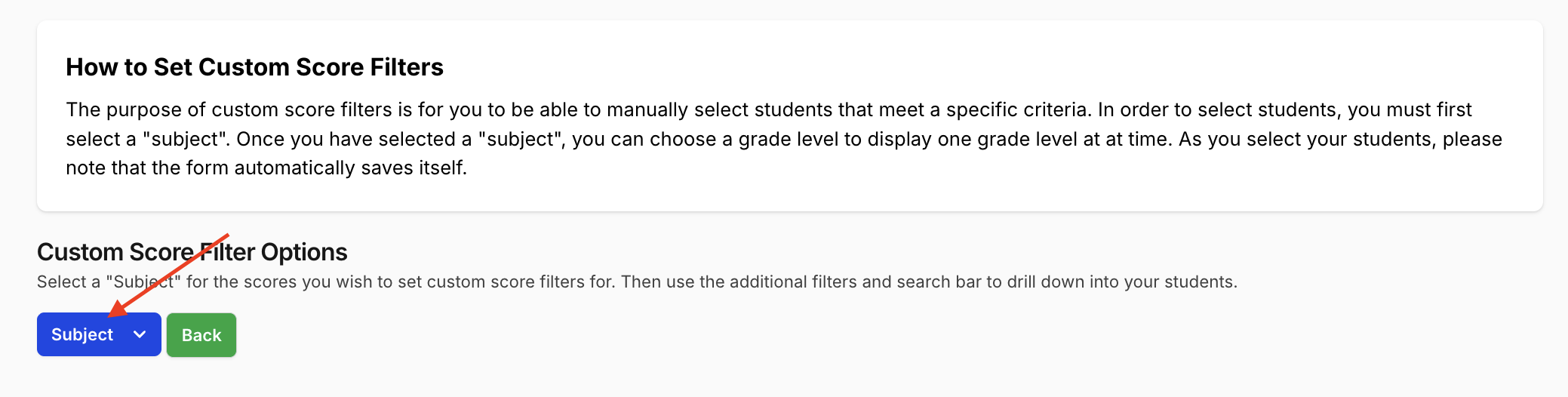
 3. Select Subject
Use the dropdown to choose a subject (e.g. English, Math, Science, History)
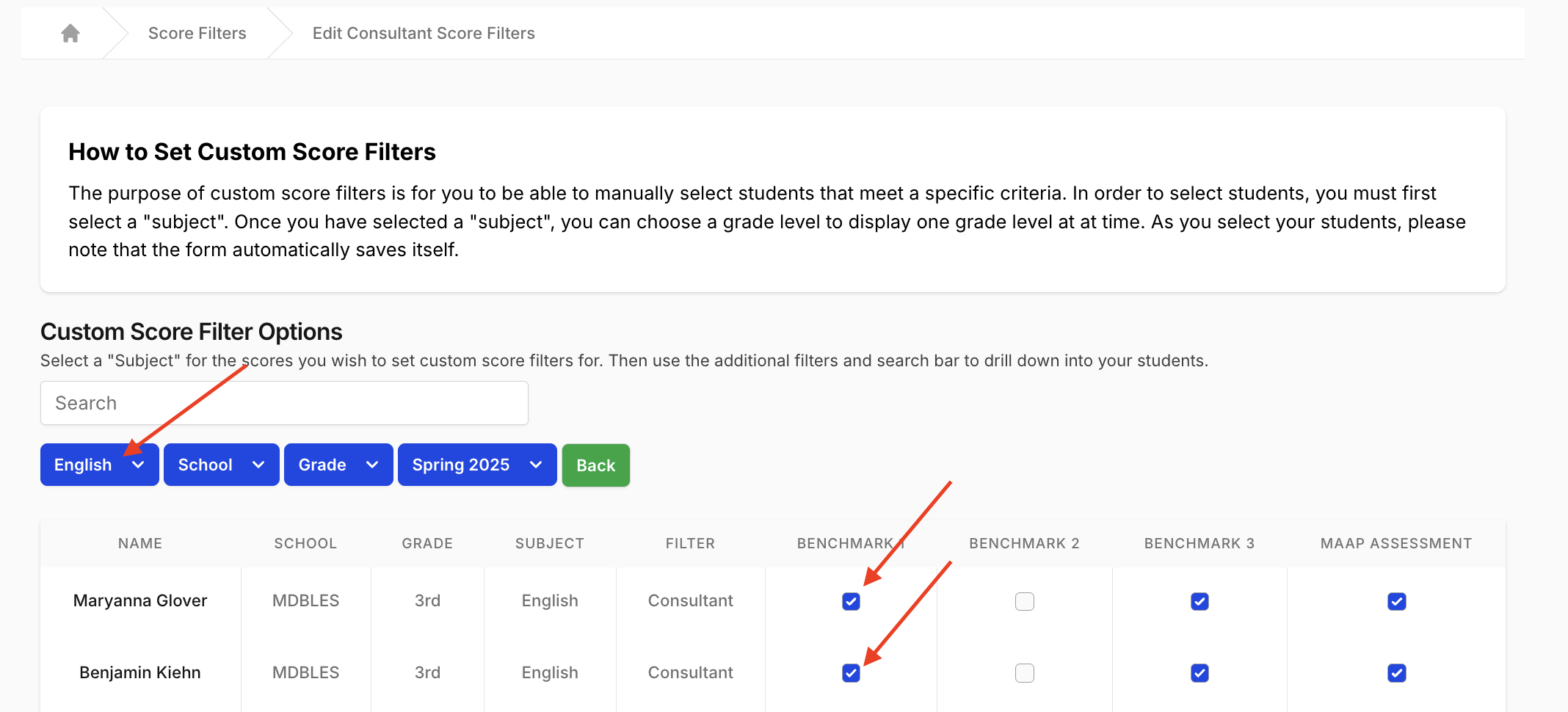
 4. Tag Students
Check the box for each period next to every student you want included in the selected filter. Changes save automatically as you select.
These columns look like the benchmark labels used elsewhere (Benchmark 1, Benchmark 2, MAAP), but here they are time-period tags: they mark when the student received the support (which nine-week window), not which benchmark exam they took. A tag under the first period means "during the first nine weeks," not Benchmark 1.
Notes
- Filters are non-exclusive — a student can be tagged under multiple filters.
- Filters are local context only — they do not change how scores are calculated.
- All tags carry through to relevant PDFs, CSVs, and trackers for filtered analysis.
Next Steps
- Viewing Score Filters
Explore how score filters impact what you see in trackers, reports, and exports.
Support
If you encounter any issues:
- Helpdesk Ticket: Helpdesk Ticket
- Website: https://tkganalytics.org