Custom Teachers
A custom teacher is somebody whose students do not come from their own class roster. There are two kinds, and almost everything about them differs, starting with where the students come from and ending with whether you can give them a login.
| Gifted and Inclusion | Added by your district | |
|---|---|---|
| Who they are | Teachers your SIS sends us with a gifted or inclusion course | Interventionists, consultants, and staff whose courses we do not import |
| Where their students come from | Your SIS | You name them |
| Who enters them | Nobody: they arrive in your teacher files | You do |
| Their subjects | Matter for an inclusion teacher, not for a gifted one | Matter |
| Giving them a login | Comes from your teacher files | The email on their record gives them one |
| Full guide | Gifted and Inclusion Teachers | Custom Teachers You Add |
Who Can Edit Teachers?
Entering a custom teacher, naming the students they work with, and setting the email that decides their login are open to:
- District Admins
- District Users
- School Users
A School User does all of it for the teachers and students at their own schools. Teacher Users cannot edit teacher records.
Viewing All Active Custom Teachers
You can view a list of all currently active custom teachers in your district or school. Both kinds are listed together, and the Source column says which kind each one is. A teacher your SIS sends is listed in a school year it sends them a gifted or inclusion course, so a teacher whose gifted or inclusion course was in an earlier year is not listed now. A gifted teacher is listed whether or not any subjects are set on their record. An inclusion teacher is listed once theirs are set, because their numbers are built on them.
Step-by-Step Instructions
- Navigate to the Teachers page from the top navigation bar.
- Click the blue "Teacher Actions" button on the right-hand side of the page.
- Select "Custom Teachers" from the dropdown menu.
The Students column counts the students each person works with this year, from whichever source applies.
How to Update a Teacher's Subjects
Subjects can be set only where a teacher's numbers are built on them: for an inclusion teacher, and for a custom teacher your district added. The field is read-only for everyone else: a gifted teacher, a teacher whose students are their own class roster, and a teacher with no students at all this year.
Subjects do different work for the two kinds of custom teacher, the gifted and inclusion teachers your SIS sends and the ones your district added, which is covered on each kind's own page. Of the teachers your SIS sends, an inclusion teacher's subjects are set here, and a gifted teacher's are shown read-only because they change nothing.
Subjects are the one field on this form that a custom teacher your district added can have changed here. Their name, email and Active box are shown greyed out, because those are set on their custom teacher edit page, which the form links to. See Where Each Field Is Edited.
Step-by-Step Instructions
- Navigate to the Teachers page from the top navigation bar.
- Find and select the teacher you want to edit.
- Click the red "Edit" button in the top-right corner.
-
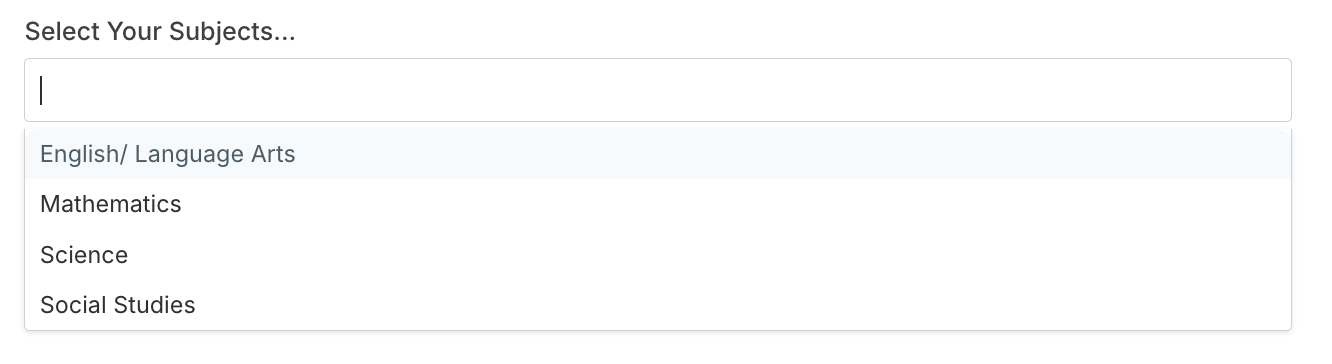
Scroll to the "Select Your Subjects..." section.
-
Choose up to four subjects:
- English
- Math
- Science
- Social Studies
- Click "Update Teacher" to save your changes.
Where a subject change can move impacts that are already built, which is an inclusion teacher's or a custom teacher you added, the page you land on carries the rebuild control, so you can count the change now rather than waiting for the next build: a Rebuild Impacts row on a teacher's own page, and a Rebuild impacts button on the Assigned Students page of somebody you added. It is covered on each kind's own page: the custom teachers you add and gifted and inclusion teachers.
Viewing Historical Subjects for a Teacher
Once a teacher has been assigned subjects, their subject history is automatically tracked year over year.
Step-by-Step Instructions
- Navigate to the Teachers page from the top navigation bar.
- Use the search bar or scroll to find the teacher you are interested in.
- Click the teacher's name to open their profile.
- On the teacher's profile page, look for the "Historical Subjects" button.
- Click "Historical Subjects" to view a year-over-year record of the subjects assigned to that teacher.
This view lets you follow changes to subject assignments over time, which matters most for a custom teacher whose assignments shift across school years.
Need Help?
- Helpdesk Ticket: Helpdesk Ticket
- Website: https://tkganalytics.org/